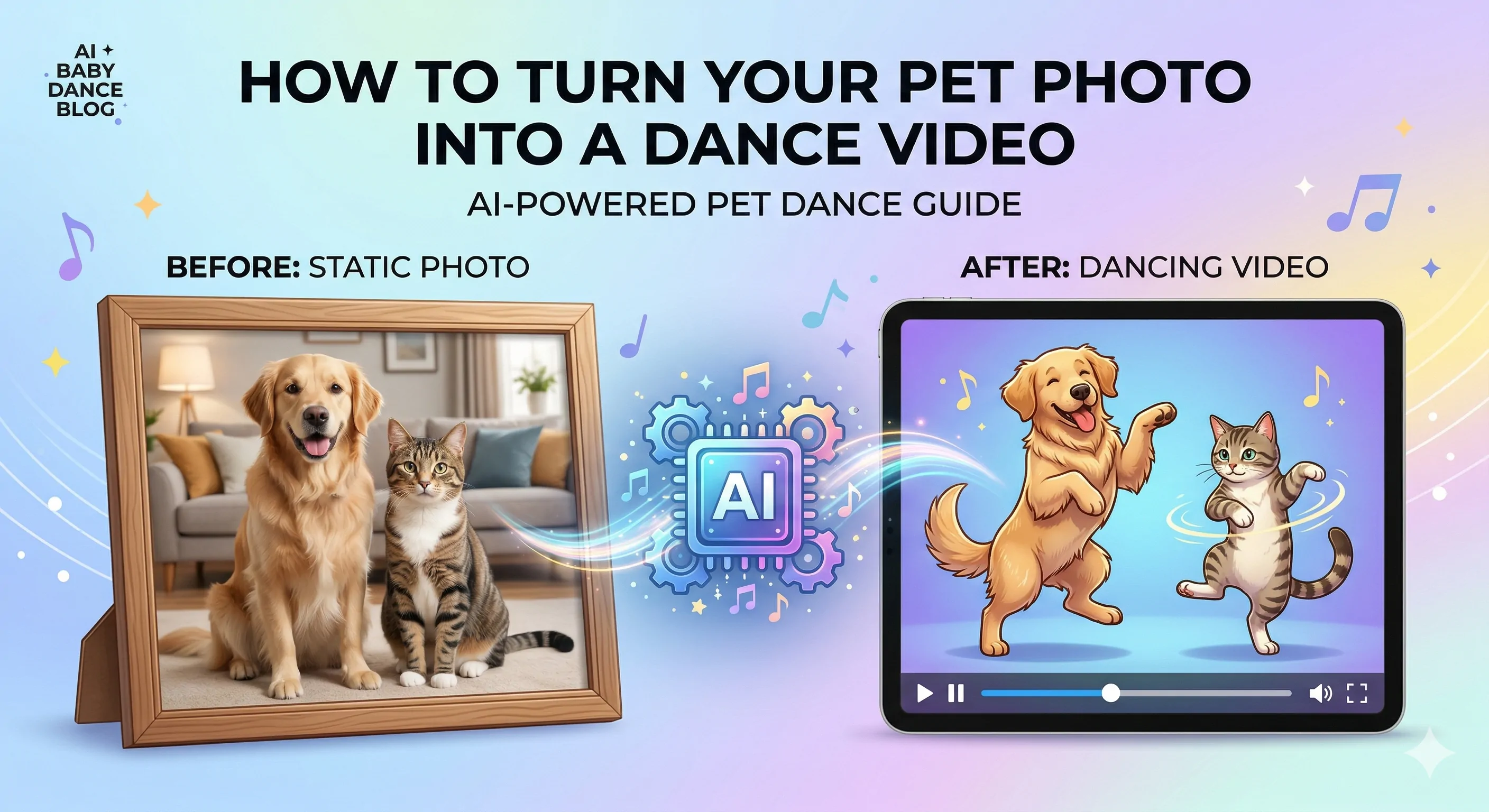
How to Turn a Pet Photo into a Dancing Video
Learn how to turn a dog or cat photo into a funny dancing video. See what photo works best, when to fix the image first, and how to generate the final pet dance clip.
A single pet photo can become a funny dancing video in just a few steps. The biggest difference is rarely the idea itself. It is the starting image. A clear dog or cat photo, a template that fits the mood, and a frame with enough body detail usually lead to a much better result than a random cute close-up.
This guide walks through the full workflow, from choosing the right image to generating the final clip with AI Pet Dance. If your original photo looks cramped or awkward, you can improve it first before moving into video generation.
What You Need Before Creating a Pet Dance Video
Before you start, prepare one clear photo of your dog or cat. The goal is not to find the cutest image in your camera roll. The goal is to start with a photo that gives the model enough body detail and room to infer motion naturally.
At a practical level, you only need:
- one clear pet photo
- one dance template that matches the mood of the image
- a clean enough frame for motion
That sounds simple, but getting these basics right is what separates a funny shareable clip from a result that feels unstable or incomplete.
Step 1: Choose a Pet-Friendly Photo
The easiest photos to animate are the ones where your pet is the clear main subject.
Good examples include:
- a standing dog with most of the body visible
- a cat sitting upright with enough space around it
- a well-lit pet portrait with a simple background
- one-pet photos with a clear outline
Photos that are harder to animate include:
- close-up face shots
- photos where paws or tail are cut off
- images with multiple pets overlapping
- very dark or blurry pictures
This is where many people get tripped up. The cutest pet photo is not always the best photo for motion. A face-only puppy picture may look adorable in your camera roll, but it usually does not give the generator enough information to create a convincing dance result. A wider, cleaner photo often performs much better.
If you are not sure what kind of image works best, see our guide to the best dog and cat photos for AI pet dance videos.
Step 2: Fix the Photo if It Is Not Ready for Motion
Many pet photos fail not because the pet is wrong, but because the framing is not ideal for motion.
You may want to fix the image first when:
- the body is cropped
- the subject is too close to the camera
- the pet is partly hidden by furniture or blankets
- the background is distracting
- the pose feels too compressed
These issues are common in casual phone photos, especially indoor dog and cat photos. The good news is that you do not need to throw the image away just because it is imperfect. In many cases, a quick prep step is enough.
If the framing is weak, use Dance Image Editor to make the photo more motion-ready before you generate the final clip. The goal is not to make the image look artificial. The goal is to give the model a cleaner, more readable subject with enough room to infer motion.
If your image is cropped, here is a step-by-step guide to fixing a cropped pet photo before animation.
Step 3: Upload the Photo to AI Pet Dance
Once the image looks ready, upload it to AI Pet Dance. This workflow is built for dog and cat photos, so it is more focused than using a generic dance generator and hoping it handles pet anatomy well.
At this step, your goal is simple:
- upload the pet photo
- choose a pet-friendly dance style
- generate a short dance clip
This is also the point where consistency matters more than complexity. You do not need a long prompt, editing experience, or a complicated tool stack. You need a strong pet image and a dance template that fits it.
For most users, the best first result comes from choosing a clear photo and keeping the first generation short and simple. Once you see how the pet moves, you can refine the input or try another template.
Step 4: Pick the Right Dance Template
Not every template fits every pet photo equally well. A playful dog photo may work well with an energetic or funny dance style, while a calm cat portrait may look better with a cute or lighter-motion template.
When choosing a template, think about the final use case:
- funny meme content
- birthday surprise clip
- short-form social post
- gift for a pet lover
The closer the template matches the mood of the image, the stronger the final result usually feels. A chaotic template can overwhelm a calm portrait. A cute pet image may feel more natural with a gentler or more playful dance than with something too aggressive.
This is one reason pet-specific workflows are useful. You are not just applying motion to a random image. You are trying to create a result that still feels like your dog or cat, just in a funny animated context.
Here is a simple example of that workflow. The image becomes your input, and the short template helps define the motion style you want to generate.
Example pet photo
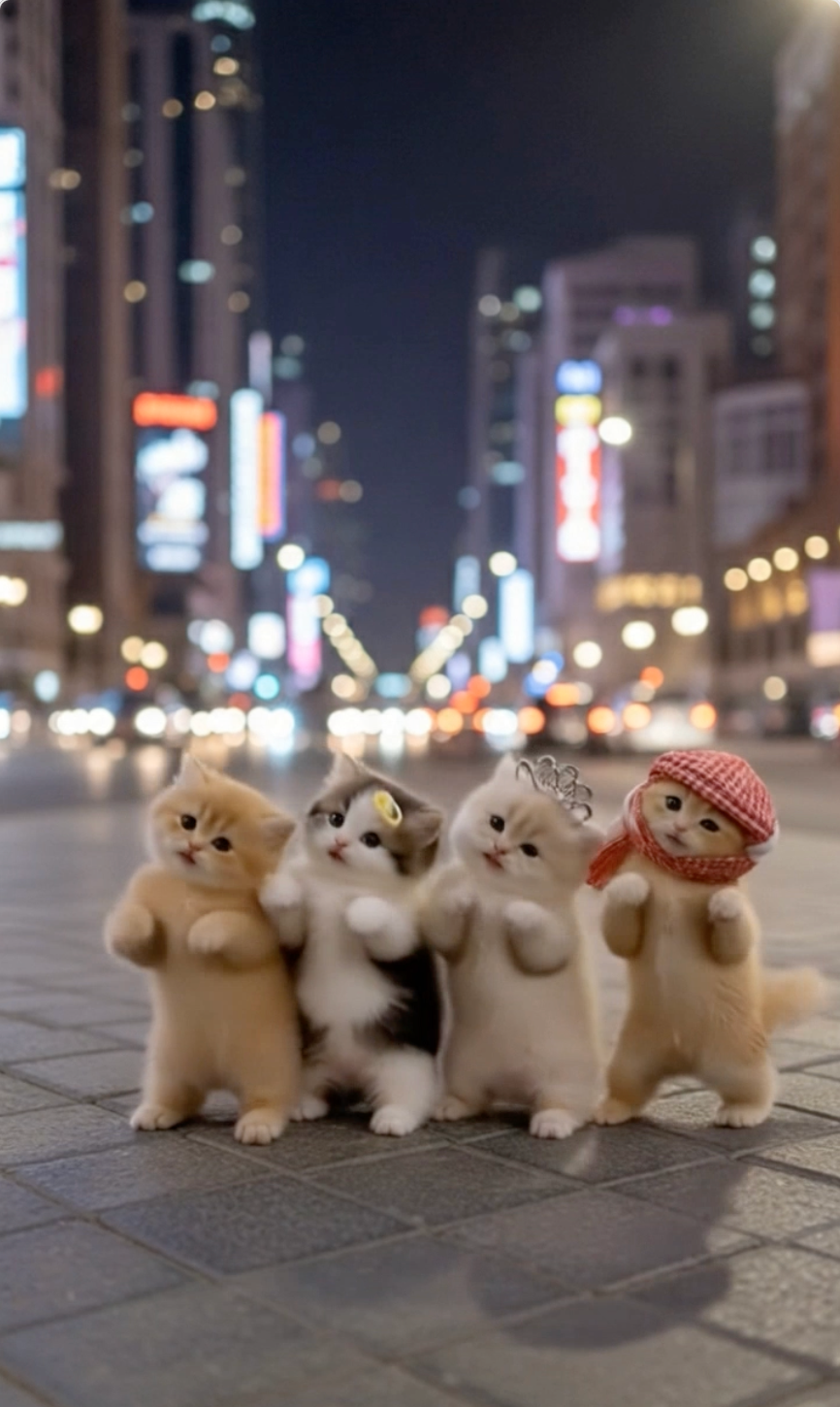
Example dance template
Step 5: Generate and Share the Final Clip
After choosing the template, generate the final video and preview the result. Short clips usually work best for sharing on social platforms, in private messages, or as light entertainment content.
You can use the final output for:
- TikTok
- Instagram Reels
- YouTube Shorts
- WhatsApp or private birthday messages
- pet meme posts
Pet dance videos work because they are easy to understand and easy to share. A strong result usually feels playful within the first second or two. That makes short clips especially effective for social and messaging use cases.
Tips for Better AI Pet Dance Results
Here are a few practical tips that improve output quality more often than people expect:
- use one clear pet as the main subject
- avoid photos where the body is heavily cropped
- choose images with good lighting
- avoid overly busy backgrounds
- fix the image first when the pet is too close to the frame
- match the dance template to the photo mood
Common Mistakes to Avoid
The most common mistake is using a cute photo that is not actually suitable for motion. A very close face photo may look adorable, but it often does not contain enough body information for a convincing dance clip.
Another common mistake is skipping the image-prep step or choosing a template that clashes with the mood of the photo. When the frame is awkward or the motion style feels mismatched, the final result can look less natural even if the idea is good.
FAQ
Can I make a pet dance video from one photo?
Yes. A single dog or cat photo is usually enough, especially when the pet is clearly visible and the framing is clean.
Does this work for both dogs and cats?
Yes. AI Pet Dance is designed for pet photos, including both dogs and cats.
What if my pet photo is cropped?
Use Dance Image Editor first to improve the framing before generating the dance video.
What is the best pet photo for animation?
The best photos are clear, well-lit, and show most of the pet’s body without heavy cropping.
Ready to create a funny pet dance clip? Start with AI Pet Dance. If your image is cropped or messy, fix it first with Dance Image Editor.
Author

More Posts
Best Dog and Cat Photos for AI Pet Dance Videos
See which dog and cat photos work best for AI pet dance videos. Learn what makes a good input image, what to avoid, and how to fix weak photos before animation.
How to Turn Your Baby Photo into a Viral Dance Video in 2 Minutes (2026 Guide)
Want to make your baby dance like a TikTok star? Learn how to use the best AI Baby Dance generator to turn static photos into viral videos in minutes. No editing skills needed.
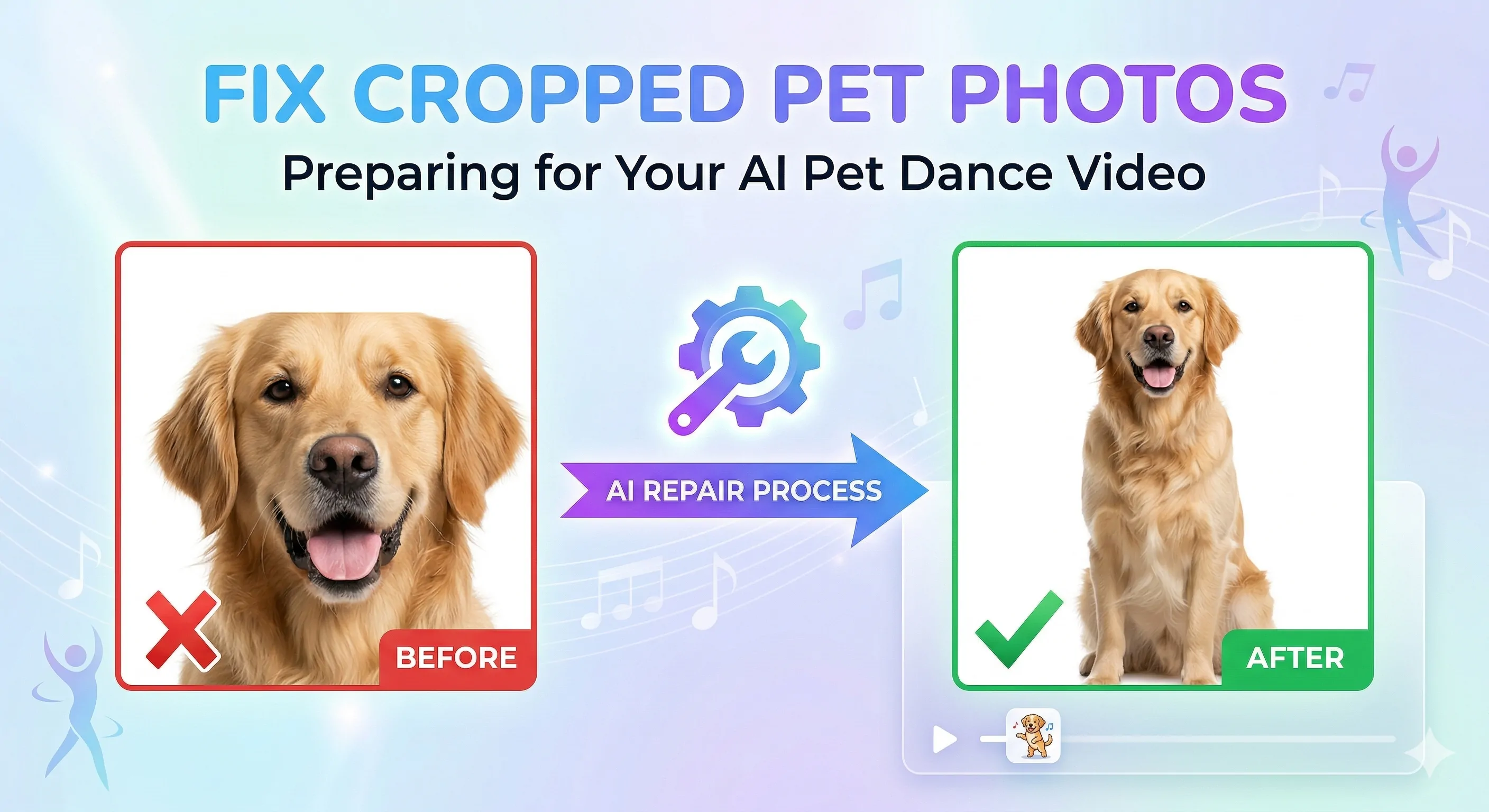
How to Fix a Cropped Pet Photo Before Making a Pet Dance Video
Learn how to fix a cropped dog or cat photo before making an AI pet dance video. See why bad framing causes weak results and how to prepare the image for animation.
Newsletter
Join the community
Subscribe to our newsletter for the latest news and updates